Revit add-in + Rubiq dashboard · WBS & BOQ automation
01 / 11Try Qubiq on a small house.
Qubiq codes every element of a Revit model. Rubiq, in the office, makes the final bill.
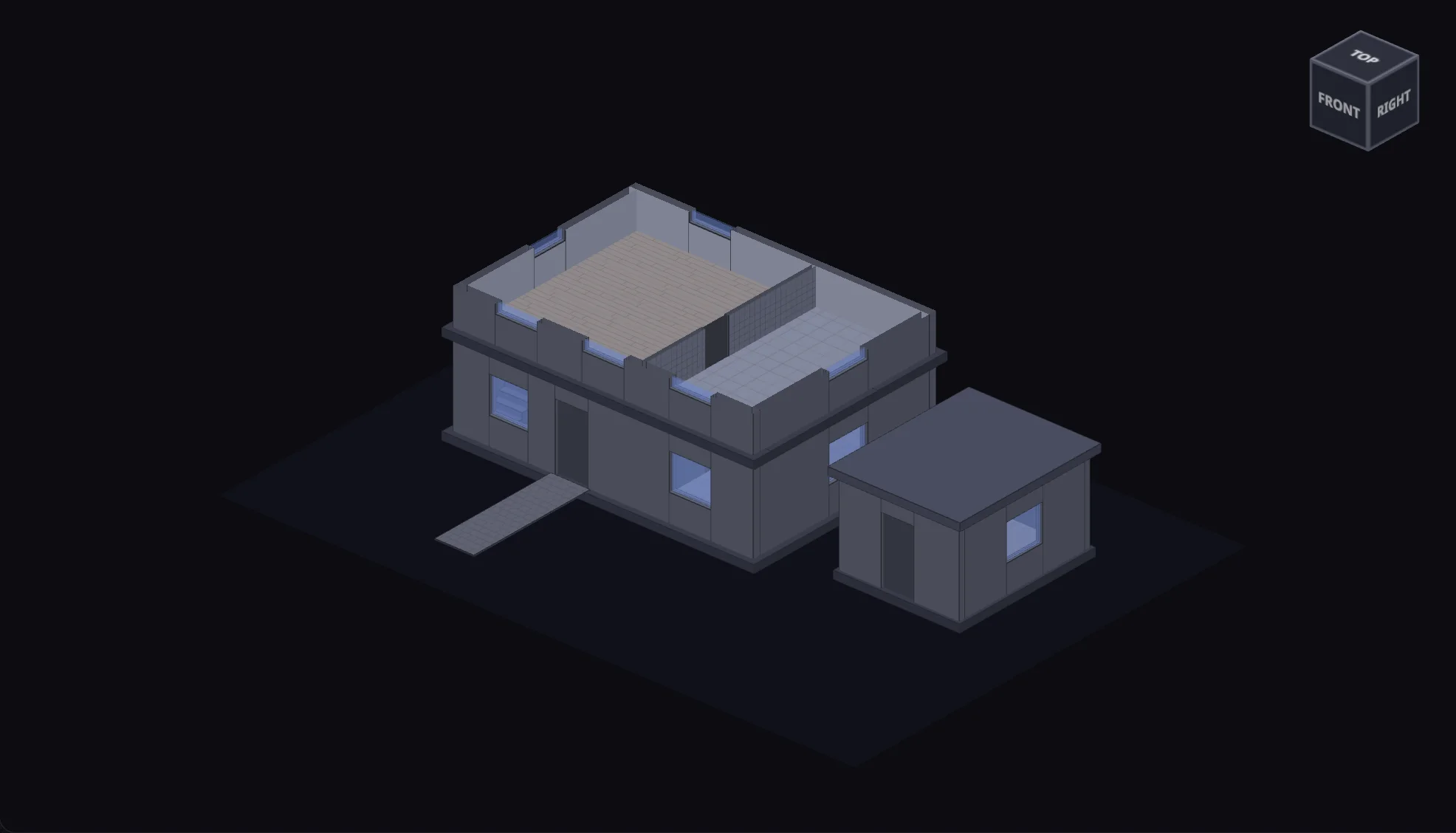
The model
A house and an annex, 41 elements, and not one code yet.
Turn it as you would in Revit, tag it, send its bill to the office, price it and export it. It takes about a minute.
Nothing to install · nothing is sent anywhere
Nothing picked
Click any part of the model: a wall, a door, a window, the roof, the paint on a wall. The floors show from above, and in the plan of each level.
WBS code
Every element gets one, once the model is tagged.
- 01Pick an elementTurn the model, open a level, and click a floor, a wall, a door or the paint on a wall. Each has a mark, a level and a workset, and no code yet.
- 02Tag itOne run gives every element, and every finish on a wall, its eight-part code.
- 03Send to RubiqThe model’s bill goes to the office: one line per item, materials too, each with its quantity.
- 04Accept the proposalThe studio’s stone floor is new to the office library. Rubiq proposes what it opens into, with its price codes; a person decides.
- 05Export the final billEvery line opened into what the QS prices, and priced from the list. It leaves as Excel, or as CSV.
Example data, made up for this page: the house, the library and the prices. Nothing you do here is sent anywhere.
The problem
02 / 11Take-off shouldn’t be manual —
or different on every job.
Stale by lunchtime
A take-off done by hand is out of date the moment someone moves a wall. The model changes; the schedule doesn’t.
Everyone codes differently
Without a shared structure, the same element is classified three ways across three jobs. Nothing reconciles.
Errors surface too late
A missing Type Mark or a misplaced door only shows up when the BOQ won’t add up — always under deadline.
How it works
03 / 11From model to bill in five steps.
The ribbon reads left to right in the order the work happens. Each card plays the tooltips of its own buttons.
Set up once
Pick what gets counted, and let the codes follow the model as it changes. The office template comes down from the cloud by itself.
Build the keys
An item is known by its mark. The office picks where marks live, in Revit’s Type Mark or in Qubiq’s own field, and Marks gives many types their mark and chapter at once.
Tag it
One run assigns every WBS parameter from each element’s zone, level, workset and Type Mark — on a selection, the active view or the whole model.
Check
Problems show up before the bill leaves Revit, each with its reason and its elements one click away.
Send to Rubiq
One click sends the model’s bill to the office, with a preview of every row. A model with design options sends the one you pick from each set. Rubiq takes it from there.
Anatomy of a WBS code
04 / 11Eight segments. One string per element.
WBS0 · Location
Project
The project code, carried by every element.
Read from: Setup, once per project
Back in the model
05 / 11Quantities, schedules and legends, inside Revit.
Rubiq — the office dashboard
06 / 11The BOQ doesn’t stop at export.
Every bill lands in your office’s private cloud, where Rubiq — the Windows dashboard installed with the add-in — turns model lines into the final, priced bill of quantities.
Rubiq ships with every Qubiq install, knows the seat by its sign-in or the office’s licence key — signed in once, nothing to log into after — updates itself, and imports the office’s Excel item catalog and its existing bills in one go.
For BIM coordinators & managers
07 / 11Standardise take-off across every project and team.
The office team, their roles, and who receives the daily WBS audit.
One method, every project
Shared parameters, one cloud catalog and one office template mean every model is classified the same way — regardless of who runs it.
Numbers you can defend
Each export is traceable to the model, template and engine version that produced it, with warnings and unmapped items flagged.
Nothing drifts silently
Type Marks, Keynotes and Materials lock once assigned, drift is detected, and a daily audit keeps a record — hand edits can’t quietly poison the BOQ.
Deployment without drama
One installer covers Revit 2022–2027 and Rubiq; the updater runs outside Revit and keeps every seat on the office’s current build — no licence server, no manual reinstalls.
Office rules
08 / 11The rulebook the whole team can see — and react to.
Every office has a way things are “supposed” to be done — usually it lives in someone’s head, or a PDF nobody reopens. Office Rules puts it inside Qubiq instead: a living, firm-wide rulebook the coordinator owns, that the whole team can react to and help shape.
The coordinator sets the standard
The coordinator writes and publishes the office’s workflow rules — the same rulebook every project inherits.
Owned by the coordinatorThe team reacts, anonymously
Anyone can like or dislike a rule. Reactions are anonymous, so feedback reflects what people actually think about the workflow — not what’s safe to say to the person who wrote it.
Anonymous reactionsAnyone can propose a rule
Team members can propose changes or new rules of their own, choosing whether to sign the proposal or submit it anonymously. The same reaction system applies, so the coordinator sees where a proposal actually stands.
Sign it — or don’tVisibility, not silence
The only signal a coordinator usually gets that a workflow isn’t working is inconsistent models three weeks later. Office Rules surfaces disagreement early, in one place, before it becomes a quiet workaround nobody mentions.
Still one rulebook
Office Rules doesn’t turn the standard into a vote — the coordinator still decides what’s published. It just means that decision is made with real signal, instead of in the dark.
Licensing & deployment
09 / 11One licence for the office.
No licence server.
Make an account and try it free for 60 days. After that, Qubiq is licensed per organisation against a private cloud — built for offices, not dongles.
Seats, not dongles
One licence covers the whole office, up to your seat limit: each person’s account, or the office’s key. Each machine registers its own seat, and the team roster — Coordinator, Project Manager, Specialist — says who’s on it and what they may change.
Works offline
Each computer signs in once, or the office’s key is entered once, in Rubiq. Each seat holds a signed token, encrypted per machine, that keeps working for 14 days without a connection before it asks to see the network again.
Stays current
One installer for Revit 2022–2027 and Rubiq; the updater runs outside Revit and keeps every seat on the office’s current build — no reinstalls, ever.
FAQ
10 / 11Questions BIM teams ask first.
Does it modify my Revit model?
Qubiq writes shared parameters (with fixed GUIDs) onto elements and keeps an offline copy of the office catalog in the project; it never moves, deletes or alters geometry. If the office uses Revit’s Type Mark and Keynote for something else, Qubiq reads marks and codes from two fields of its own instead. Setup ▸ Active switches it off for a project entirely.
Which Revit versions are supported?
Autodesk Revit 2022 through 2027 on Windows. Qubiq is a standalone add-in built natively against each Revit version — no pyRevit or other frameworks required.
How is it installed and deployed?
Make an account on this page, download QubiqSetup (it is kept on GitHub) and run it; it needs no admin rights. It finds the Revit versions on the computer and installs the add-in for each of them, plus Rubiq. Each computer then signs in once, in the browser; an office with a licence key from us pastes it once, in Rubiq, instead. From then on the updater — which runs outside Revit — keeps every seat on the office’s current build; nobody reinstalls anything.
What is Rubiq?
The Windows dashboard installed next to the add-in. It receives every export, holds the office template and catalog, and is where the office assembles and prices the final bill of quantities — sub-voices, manual lines, proposals, price codes — before it goes out as Excel or CSV. It knows the seat by the computer’s sign-in or the office’s key; after that first time there is nothing to log into.
Can Rubiq price the bill?
Yes, if you want it to. Rubiq keeps official regional price lists for every office (Lombardy 2026 today; ask for your region) and reads your own from Excel or CSV. Each line gets a price code — Rubiq suggests one, a person decides — and the bill is priced from one list, with its total. A line without a code is never guessed: it stays blank, and pricing in Excel still works.
Does the AI touch my model or my bill?
No. When an item needs sub-voices the library can’t answer, a chapter needs grouping into super-voices, or a line needs a price code, Rubiq asks a hosted model for a proposal, grounded on your own entries, your earlier decisions and the price list. The proposal waits in a queue until someone accepts, edits or rejects it — the model never writes to the catalog, the bill or the Revit model. Proposals after every export stay off unless the office turns them on.
Will it cope with large models?
Yes. Tag it is built for 80k+ element models, and Count it gives you live totals on any selection without leaving the model.
How does licensing work?
To try Qubiq, make an account: you and one colleague use it free for 60 days, one computer each, and each computer signs in once in the browser. After that, one licence per organisation covers an agreed number of seats; write to us. An office with a key enters it once, in Rubiq. Each machine holds a signed token, encrypted per machine, that keeps working for 14 days without a connection — a brief outage never stops take-off.
Can I reuse a setup across projects?
You don’t have to. The office template — scope, tailor marks, lot-line convention, chapter catalog — lives in the cloud and reaches every project and every seat on its own. Every change is a version the coordinator can restore.
Download
11 / 11Try Qubiq in your office.
The add-in for every Revit from 2022 to 2027, and Rubiq beside it. Windows only. Free for 60 days.
Make an account
Your name, an email and a password. You and one colleague use Qubiq free for 60 days, from the day it first signs in on your computer. Sign in
Make an accountDownload and install
QubiqSetup.exe, version 2.7.1, 100 MB, kept on GitHub, starts as soon as your account is made. It needs no admin rights. The installer isn’t signed yet, so Windows may say it protected your PC: choose More info, then Run anyway. What’s new
Sign in on your computer
Open Revit or Rubiq and click Sign in. Your browser opens this site and asks whether it is your computer: say yes. Sign in comes with the next Qubiq update. Until then, write to us and we send you a key by email, to paste in Rubiq.
Open Revit
The Qubiq tab is ready the next time Revit starts. Your account shows the days left.
Your office has a licence key from us? Download the installer and choose I have a key in Rubiq. For seats and pricing, or to talk first: hello@bimqubiq.com